Show your private iCloud or Google calendar
Overlay your private iCloud, Google, CalDAV or ICS calendar in the SimpliServ calendar, visible only to you: get your Apple ID and an app-specific password, or sign in with Google
→ Open personal settings · Open calendar
You can overlay your private calendar (iCloud, Google, another CalDAV calendar or an ICS link) in the SimpliServ calendar, so you see when you're already busy privately while planning. The events are visible only to you – your team doesn't see them – and read-only: SimpliServ never changes anything in your calendar.
For iCloud you need two things: your Apple ID and an app-specific password. Your normal Apple ID password doesn't work here; Apple only lets third-party apps into your calendar with a separate password.
Find your Apple ID
Your Apple ID is the email address (or phone number) you use to sign in to iCloud.
- iPhone / iPad: open Settings and tap your name at the very top. Your Apple ID is shown below your name.
- Mac: open System Settings and click your name at the top left.
- Browser: sign in at account.apple.com; the address is shown at the top of your account.
No Apple ID yet? Create one at account.apple.com via Create your Apple Account, or on your iPhone under Settings → Sign in to your iPhone.
On your iPhone, check under Settings → [your name] → iCloud that Calendars is turned on. Calendars stored only "On My iPhone" aren't synced to iCloud and therefore won't show up in SimpliServ.
Create an app-specific password
App-specific passwords require two-factor authentication. It's already on for most Apple IDs; if not, turn it on on your iPhone under Settings → [your name] → Sign-In & Security → Two-Factor Authentication.
Open your Apple Account
Sign in at account.apple.com in your browser with your Apple ID and confirm the code on your device.
App-specific passwords
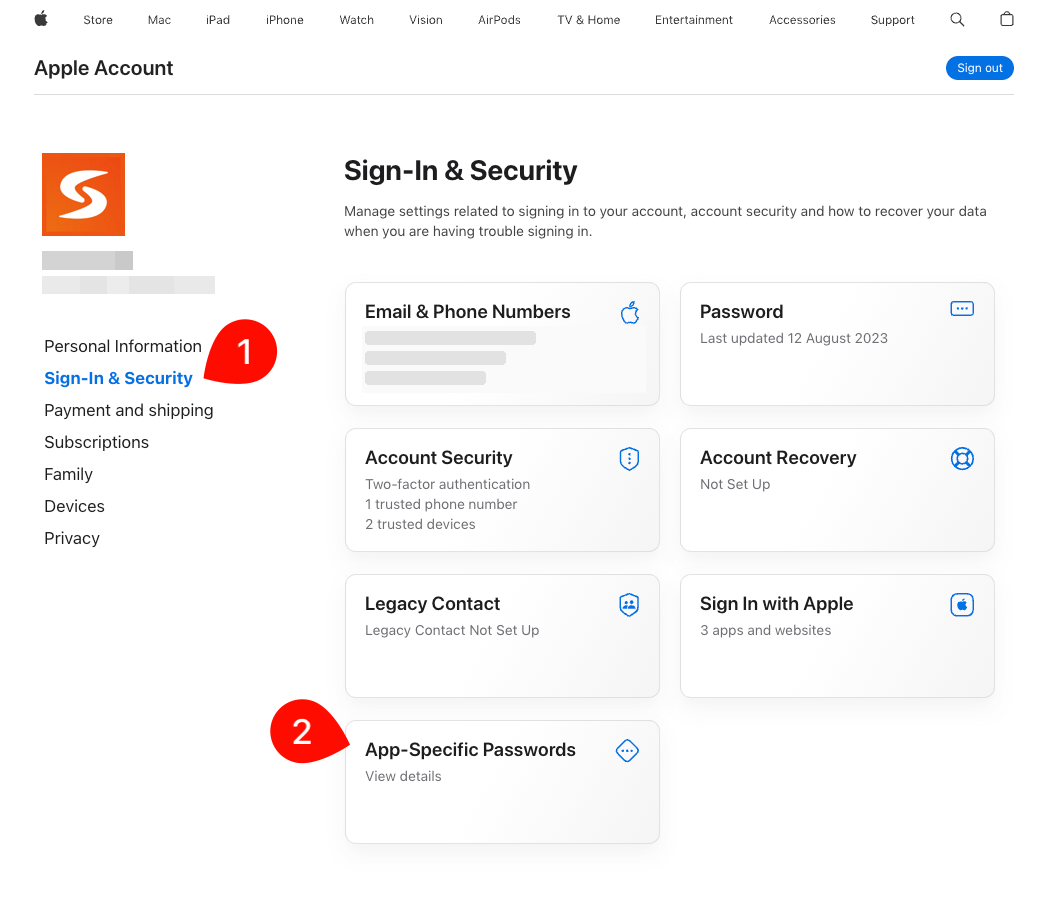
Choose Sign-In & Security on the left (1), then the App-Specific Passwords tile (2).
Create the password
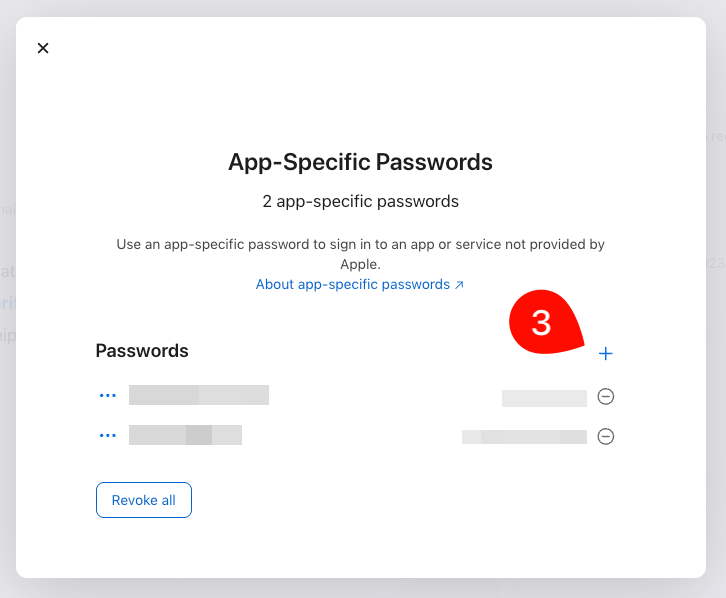
In the dialog, click the + next to Passwords (3) and enter a name you'll recognise later, e.g. "SimpliServ". Confirm with your Apple ID password.
Copy the password
Apple shows the password in the format xxxx-xxxx-xxxx-xxxx only once. Copy it right away – you'll paste it into SimpliServ next. If you lose it, just create a new one.
Connect it in SimpliServ
Open the card
Open your personal settings. On the Calendars tab you'll find the Private calendars card. Click Connect calendar.
Choose iCloud
Select iCloud at the top. A name is optional.
Enter your credentials
Enter your Apple ID under Apple ID (email) and the password you just copied under App-specific password. Spaces from pasting don't matter.
Connect
Click Connect. SimpliServ signs in to iCloud and lists every calendar in your account with its colour. Reminder lists are skipped.
Pick calendars
Untick the calendars you don't want to see. The switch next to the account hides all of them at once.
In the calendar the events appear in the colour of their iCloud calendar. In the sidebar each connected account has its own collapsible section, headed by your Apple ID. There you show or hide each calendar on its own. Only the calendars you selected in the settings appear there; hiding one only changes your calendar view. Hover an event to see calendar name, time and location. Private events can't be moved.
Connect Google Calendar
Google needs no password: you sign in with Google directly and allow access.
Open the dialog
Open your personal settings, click Connect calendar in the Private calendars card and select Google at the top.
Sign in with Google
Click Connect with Google. Pick your Google account and allow access to your calendars. SimpliServ only gets read access and cannot change anything in your Google Calendar.
Pick calendars
You land back in the settings. Every calendar of your Google account is listed in the card, including subscribed ones such as holidays. Untick the ones you don't want to see.
In the calendar each Google account gets its own section headed by your Google address. You can connect several Google accounts one after another.
Good to know
- Updates: new or changed events show up within about 5 minutes. If you added a new calendar in iCloud, click Reload calendars on the card.
- Security: the password is stored encrypted and never shown again. It only grants access to iCloud data such as calendars, not to your Apple Account itself.
- Revoke access: remove the connection with Remove – this also deletes the stored password. You can additionally revoke the password under App-Specific Passwords at Apple.
- Changed your Apple ID password? Apple then invalidates all app-specific passwords. The card shows Error; create a new app-specific password and reconnect.
Error messages
| Message | What to do |
|---|---|
| Sign-in failed. Check the Apple ID / user name and use an app-specific password, not your normal password. | Check the Apple ID and use an app-specific password, not your normal one. If in doubt, create a new one. |
| The account has no calendars with events. | No calendar is turned on in iCloud. Enable it on your iPhone under iCloud → Calendars. |
| Access to Google expired or was revoked. Reconnect Google. | Click Reconnect in the card and sign in with Google again. Your calendar selection is kept. |
| The calendar server could not be reached. | Wait a moment and click Reload calendars; Apple probably has an outage. |
Other calendars: CalDAV and ICS link
- CalDAV: for providers such as Nextcloud, Fastmail or mailbox.org. Enter the server address, your user name and the provider's password (or app password).
- ICS link: for a subscription link (
webcal://orhttps://), e.g. a calendar shared in iCloud as a Public Calendar. No password needed – but anyone who knows the link can read the calendar. For a truly private iCloud calendar, the app-specific password route is the better choice.
Related: Calendar · Calendar workflows
How is this guide?