Gmail app (Android, iPhone, iPad)
Set up your company mailbox in the Gmail app, replace old mail fetching in Gmail on the web and remove the old account

In the Gmail app you can use your company mailbox alongside your Google account. Gmail on the web (gmail.com), on the other hand, can no longer include other mailboxes – more on that below.
Set up in the Gmail app (Android)
Add an account
Open the Gmail app, tap your profile picture at the top right → Add another account → Other.
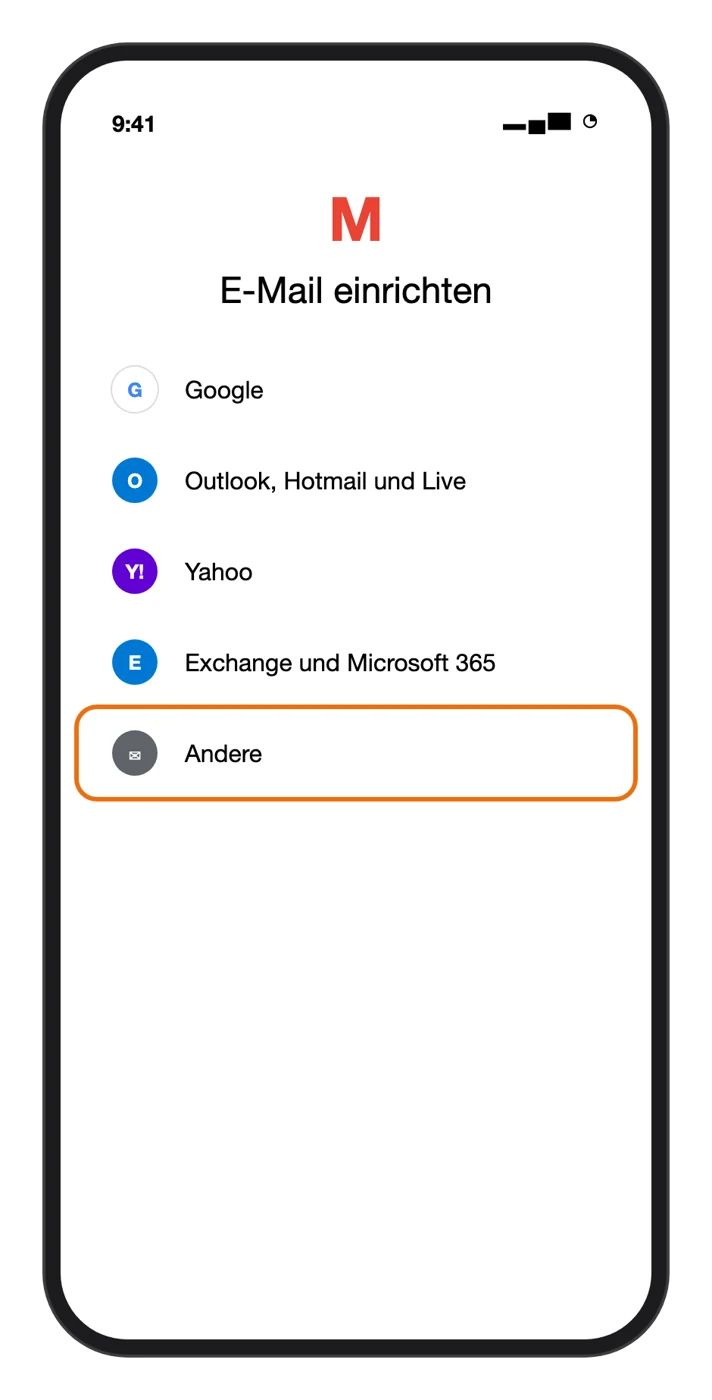
Manual setup
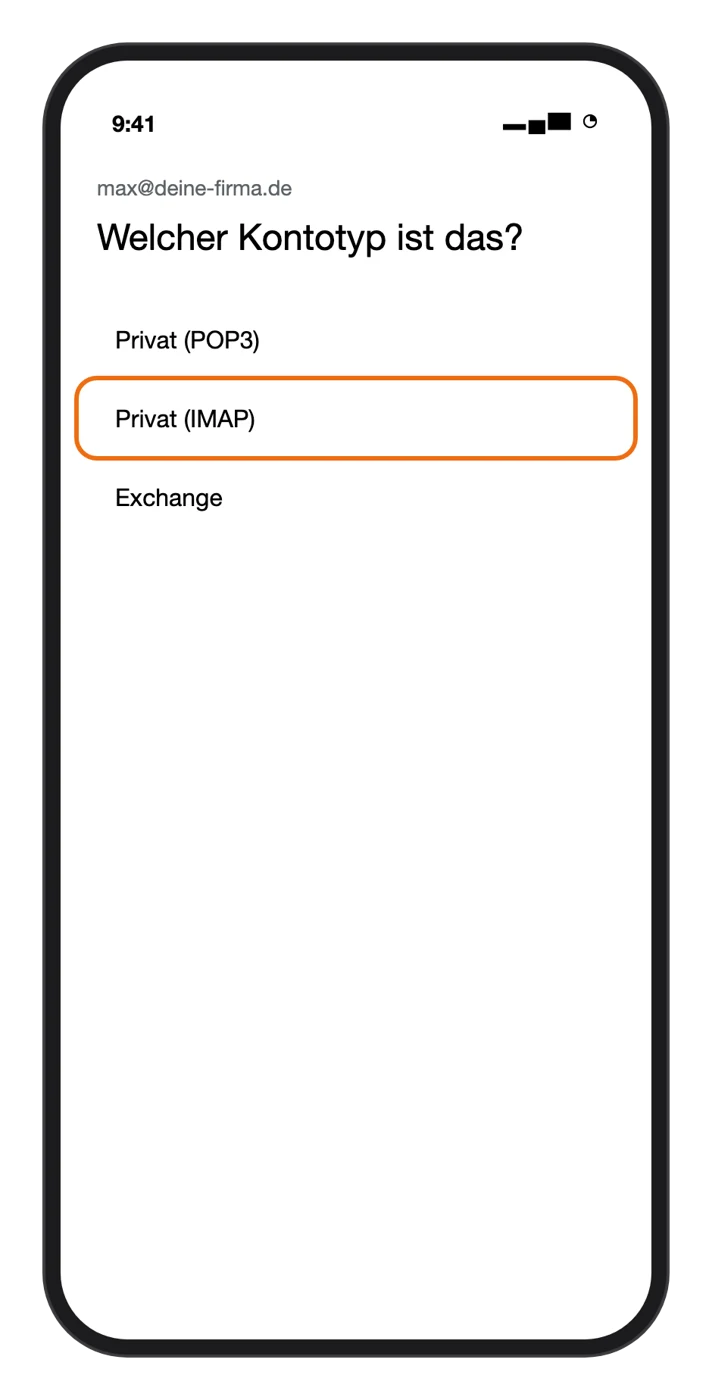
Enter your email address and tap Manual setup. Choose the account type Personal (IMAP) – not POP3. Enter your password, Next.
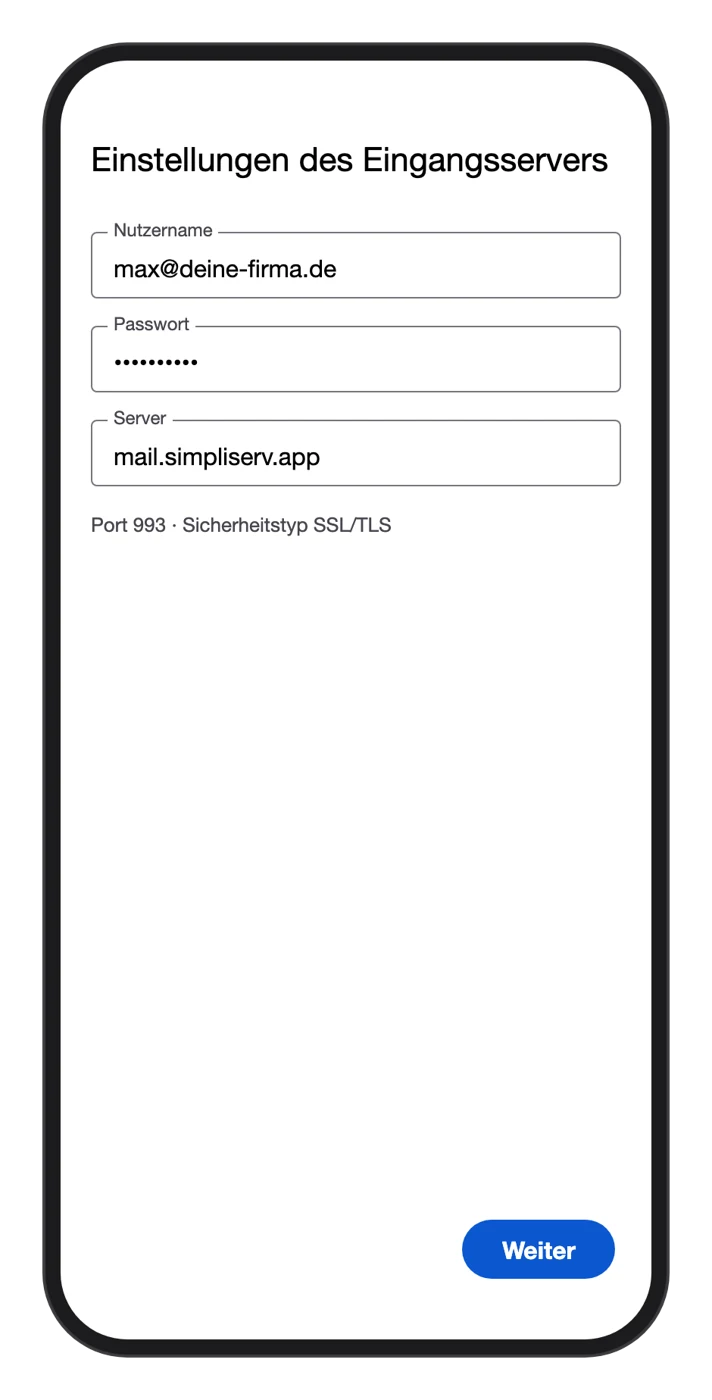
Incoming server
Username: your email address, Server: mail.simpliserv.app. Port 993, security type SSL/TLS (if asked). Next.
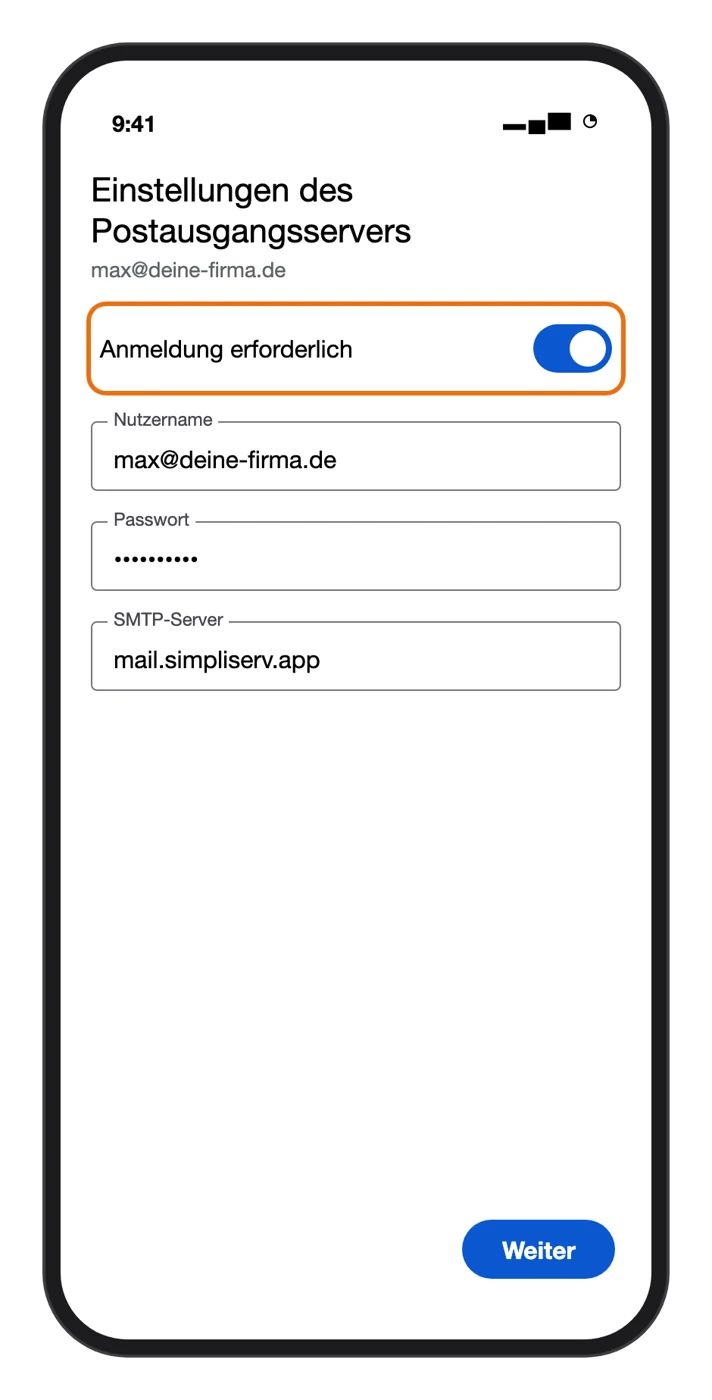
Outgoing server
Leave Require signin turned on, username and password as above, SMTP server mail.simpliserv.app, port 465, security type SSL/TLS. Next.
Finish
Choose the sync frequency, enter an account name and your sender name, Next.
Set up in the Gmail app (iPhone, iPad)
Profile picture → Add another account → Other (IMAP) → email address → for the incoming server (IMAP) mail.simpliserv.app, port 993, and for the outgoing server (SMTP) mail.simpliserv.app, port 465, each with your email address and password. On the iPhone the built-in Mail app is usually the simpler choice.
No POP3
Under Other, the Gmail app also offers Personal (POP3). With it, emails disappear from webmail and other devices. Choose Personal (IMAP).
Gmail on the web (gmail.com)
In 2026 Google discontinued "Check mail from other accounts" (POP fetching) and Gmailify: new setups are no longer possible, existing ones expire by January 2027. So a company mailbox can no longer be permanently included in gmail.com.
- On a computer, use webmail, Outlook or Thunderbird instead.
- If you used to fetch your old company mailbox via POP in gmail.com: under Settings → See all settings → Accounts and Import → Check mail from other accounts, delete the old fetch. Otherwise Gmail keeps fetching from the old server.
- We don't recommend forwarding all company emails to a private Gmail address: forwarded emails often land in spam there, and customer emails then sit outside the company.
Switching from your old mail server
Add and check the new account
Set up the SimpliServ mailbox as described above and check that folders and older emails are there.
Remove the old account
Gmail app: profile picture → Manage accounts on this device → old account → Remove account. On Android you can also do this via Settings → Accounts (or Passwords & accounts).
Related topics
How is this guide?