Thunderbird
Set up your mailbox in the free email app Thunderbird for Windows, Mac and Linux and move over from the old account

Set up
Add an account
Menu ☰ → Account Settings → Account Actions → Add Mail Account… (on first launch the dialog appears by itself).
Name, address, password
Enter Your full name, Email address and Password, Continue. Thunderbird looks up the settings itself and suggests mail.simpliserv.app once the domain is set up.
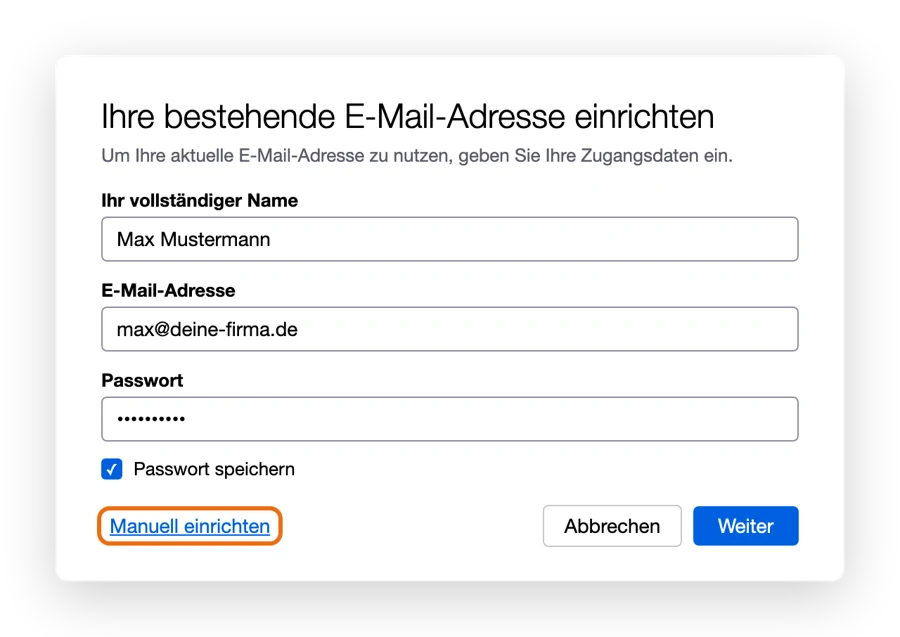
Check IMAP or enter it manually
Make sure IMAP is selected. If Thunderbird finds nothing or the server is wrong, click Configure manually and enter:
- Incoming server: IMAP,
mail.simpliserv.app, port993, SSL/TLS, Normal password - Outgoing server: SMTP,
mail.simpliserv.app, port465, SSL/TLS, Normal password - Username: your full email address
Re-test, then Done.
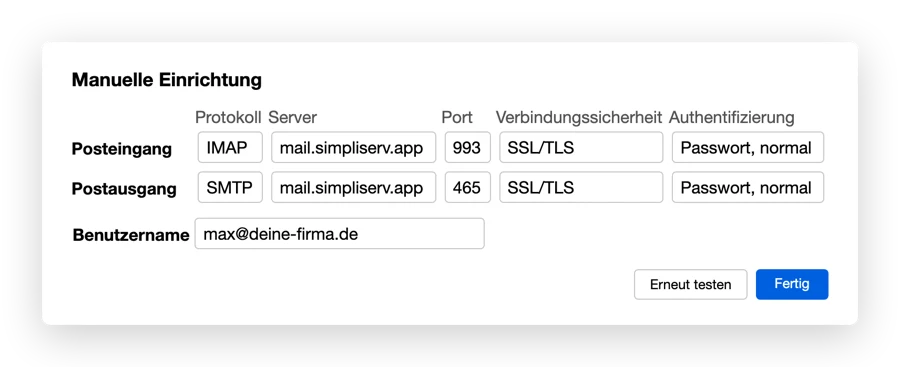
IMAP instead of POP3
Thunderbird sometimes offers POP3 ("keep your mail on your computer"). Choose IMAP so all devices see the same emails.
Signature: Account Settings → your account → Signature text.
Switching from your old mail server
Set up and check the new account
Add the new account as described above and check that folders and older emails show up.
Move local emails
Select emails from an old POP3 account or from Local Folders (Ctrl/⌘ + A), right-click Move To → and choose a folder of the new account. Whole folders you drag and drop into the new account.
Remove the old account
Account Settings → select the old account → Account Actions → Remove Account. Under Account Settings → Account Actions → Set as Default, make the new account the default.
Related topics
How is this guide?
Samsung Email (Galaxy)
Set up your mailbox in the Samsung Email app on Galaxy phones and tablets and remove the old account
Moving to SimpliServ: switching from your old mail server
How moving your emails from your old provider to SimpliServ works, what you need to do on your devices and what doesn't come over automatically