Samsung Email (Galaxy)
Set up your mailbox in the Samsung Email app on Galaxy phones and tablets and remove the old account

Depending on the One UI version, some items are named slightly differently – the order stays the same.
Set up
Add an account
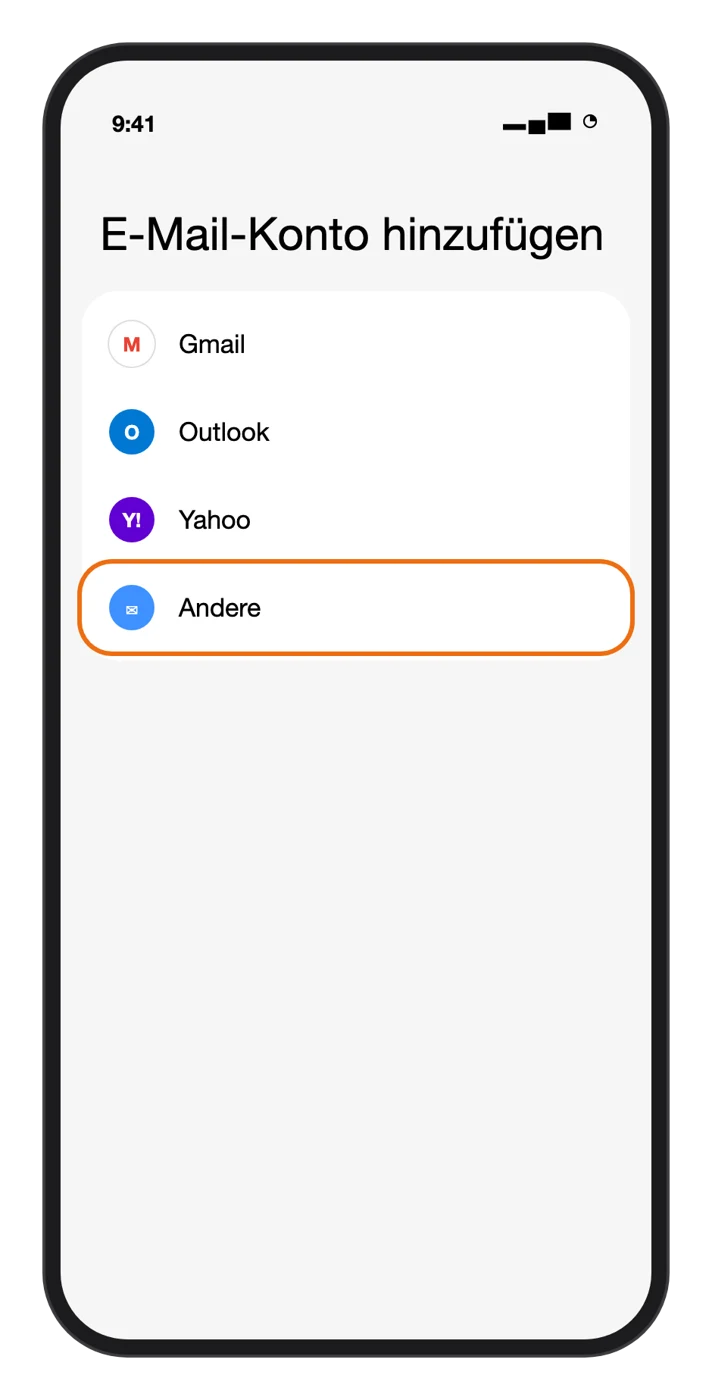
Open the Samsung Email app. On first launch, setup appears right away; otherwise tap ☰ at the top left → gear (Settings) → Add account. Choose Other.
Address and password
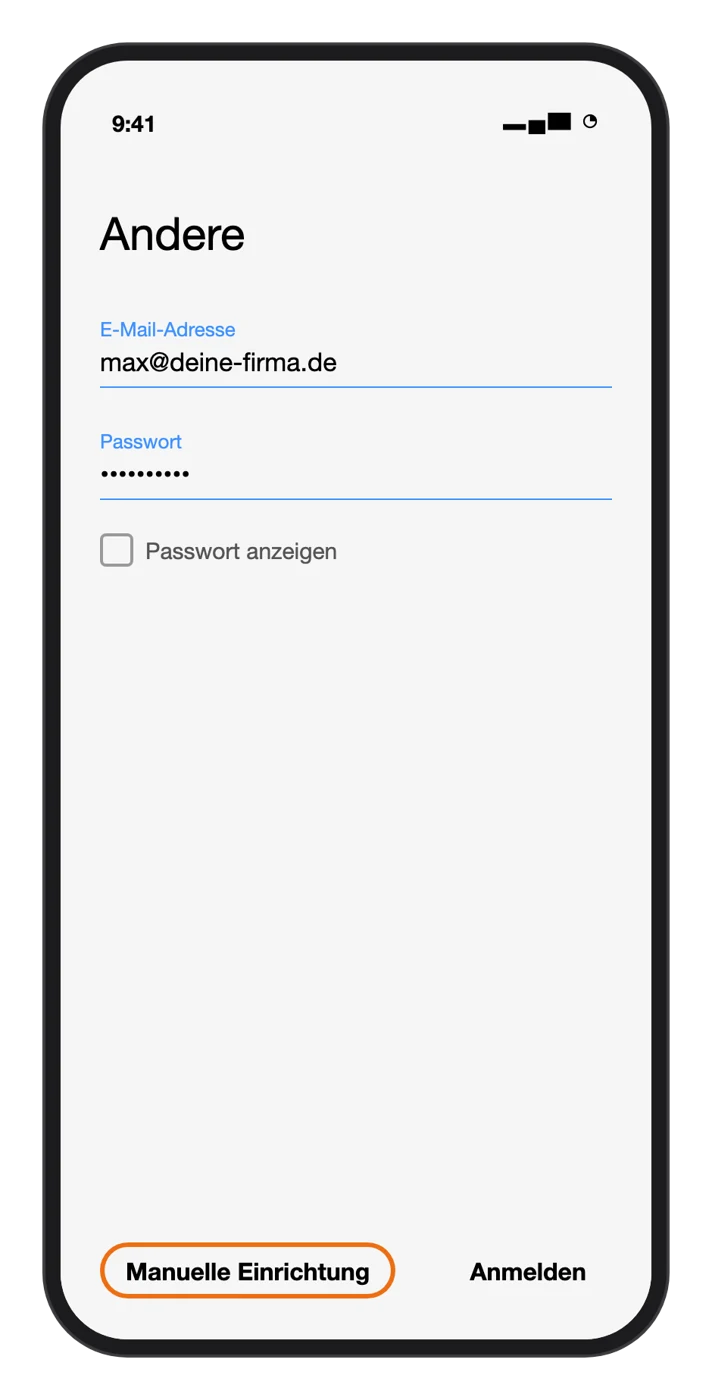
Enter your email address and password and tap Manual setup at the bottom (not Sign in).
Enter the server
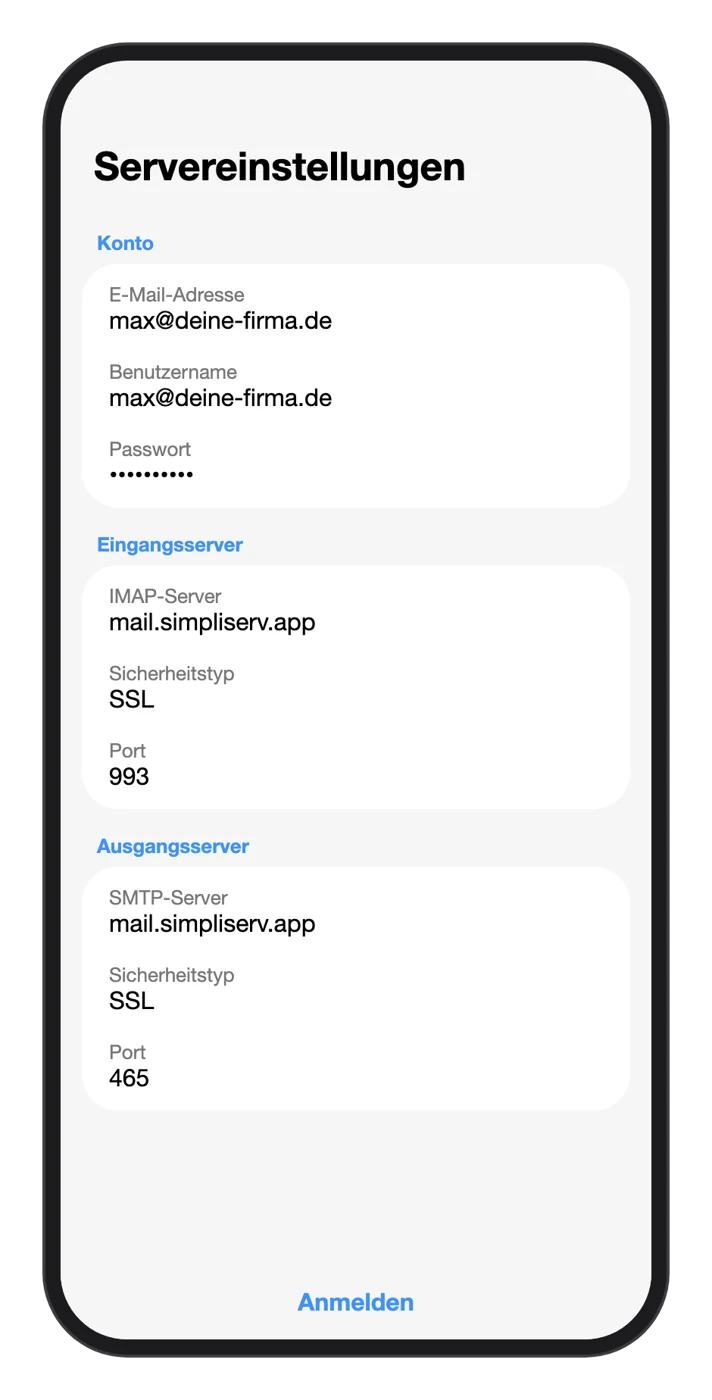
- Username: your full email address
- Incoming server: IMAP server
mail.simpliserv.app, security type SSL, port993 - Outgoing server: SMTP server
mail.simpliserv.app, security type SSL, port465 - Leave Require authentication to send emails turned on
Tap Sign in at the bottom. If the values are correct, the inbox opens.
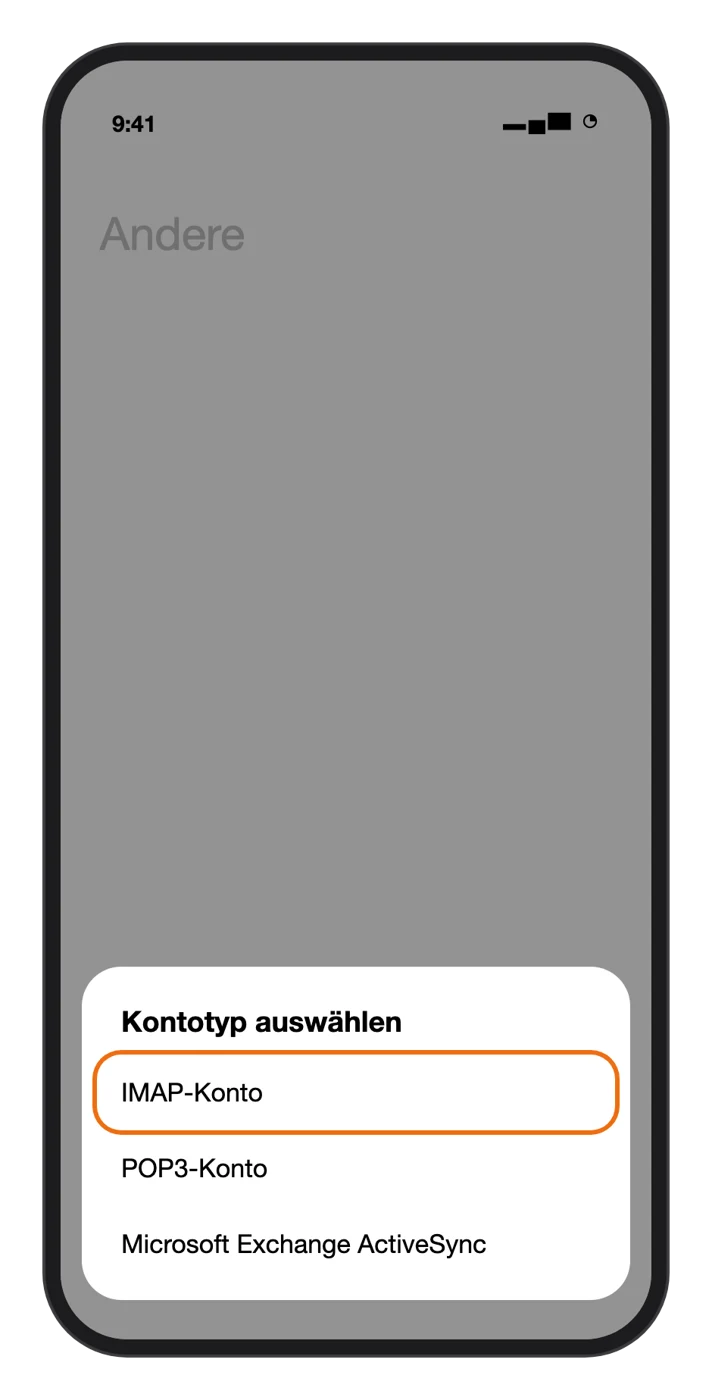
No POP3 account
A POP3 account only downloads emails to this phone. They are then missing in webmail and on other devices. Choose IMAP account.
Signature: ☰ → Settings → your account → Signature.
Switching from your old mail server
Set up and check the new account
Add the SimpliServ mailbox as described above. In the folder list (☰), switch to the new account and check that folders and older emails are there.
Remove the old account
☰ → Settings → tap the old account → Remove (at the very bottom) and confirm. Then choose the new account under Settings → Default account.
Related topics
How is this guide?