Mac (Apple Mail)
Set up your mailbox in Apple Mail on the Mac – via profile or manually – and move the old account including local emails

Option 1: Profile (fastest)
Download the profile
Open the link from your admin's instructions (or click Download profile in the setup dialog).
Install
Double-click the downloaded file. Open System Settings → General → Device Management, select the profile, click Install and enter your mailbox password.
Option 2: Set up manually
Add an account
In Mail, choose Mail → Add Account… from the menu bar, then select Other Mail Account… and click Continue.
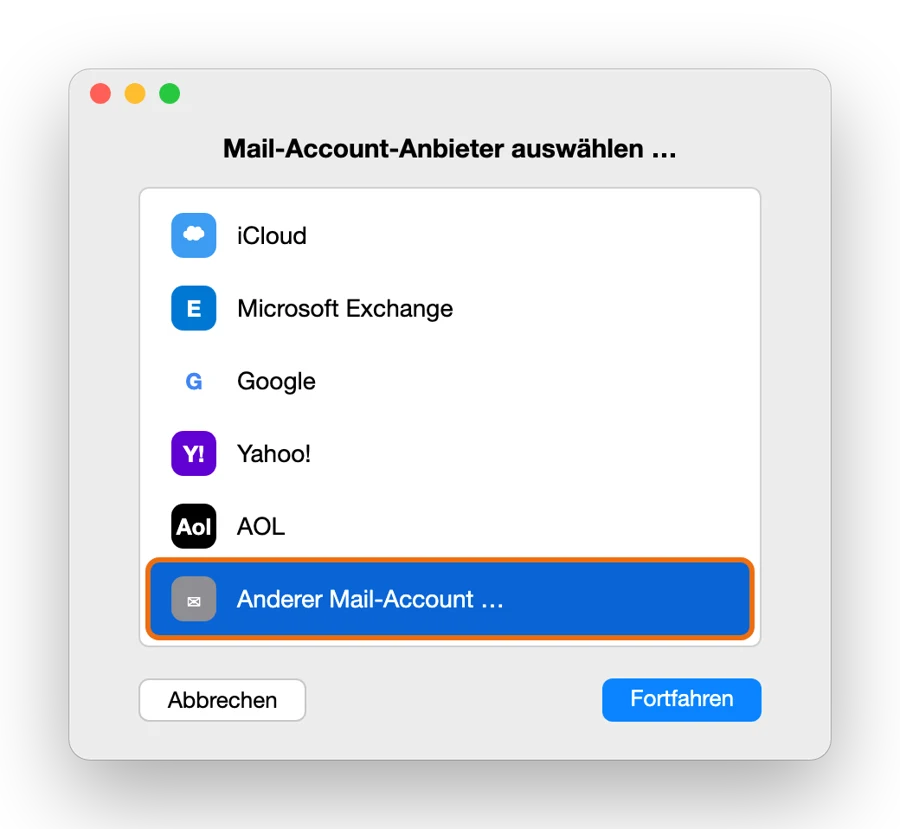
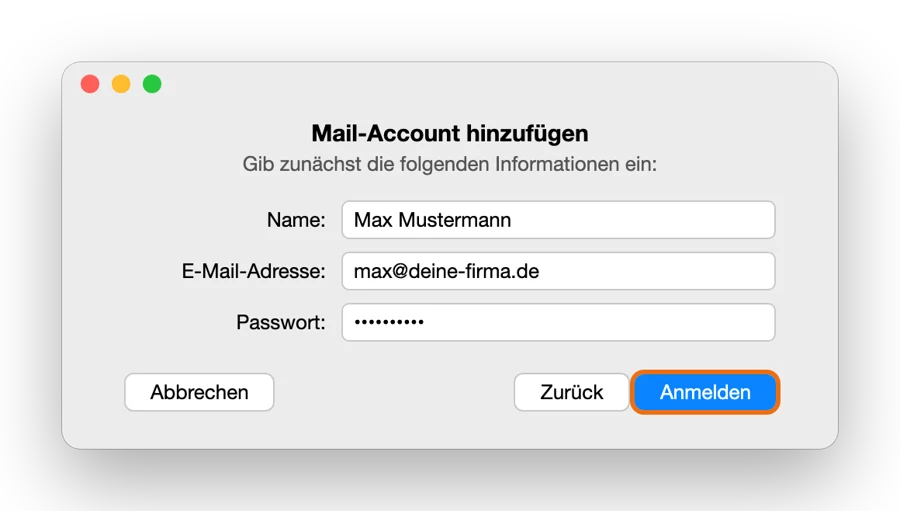
Enter the server
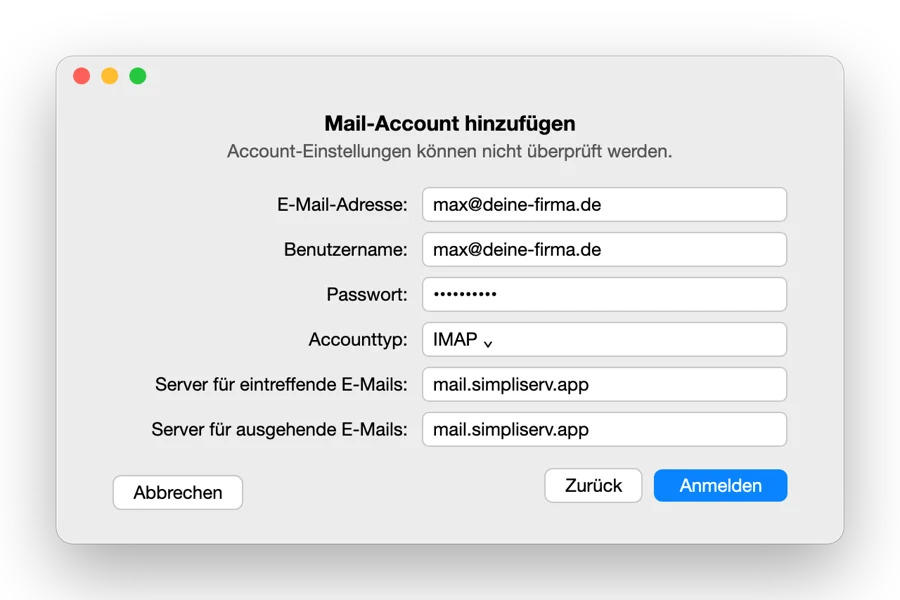
Mail usually reports "Unable to verify account name or password" and shows more fields. Enter:
- User Name: your full email address
- Account Type: IMAP
- Incoming Mail Server and Outgoing Mail Server:
mail.simpliserv.app
Click Sign In, select the apps (at least Mail) and click Done.
Account type IMAP, not POP
With POP the Mac downloads the emails and they are missing on other devices. Always choose IMAP.
Mail picks the ports itself. To check: Mail → Settings → Accounts → your account → Server Settings. Untick Automatically manage connection settings there to see the fields: incoming port 993 with Use TLS/SSL, outgoing port 465 with Use TLS/SSL, authentication Password.
Signature: Mail → Settings → Signatures, select the account on the left, create a signature with +.
Switching from your old mail server
Set up and check the new account
Set up the SimpliServ mailbox while the old one is still there. Check that folders and older emails show up in the new account.
Move local emails (POP or "On My Mac")
Emails that exist only on the Mac – in the old POP account or in mailboxes under On My Mac – you drag and drop in the sidebar into a folder of the new account. After that they live on the server and are visible everywhere.
Remove the old account
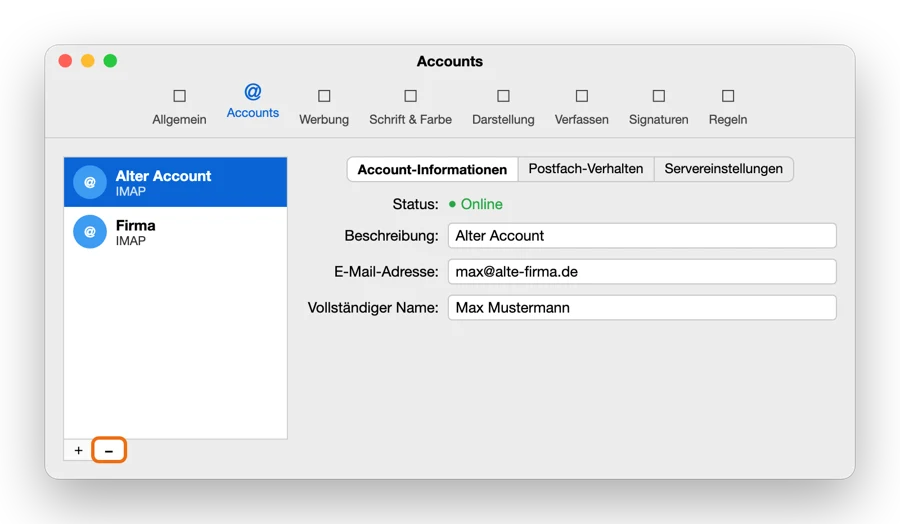
Mail → Settings → Accounts → select the old account → minus (−) at the bottom left. If you're unsure, first just turn the account off (untick Enable this account) and delete it a few days later.
Change the sender
Mail → Settings → Composing → Send new messages from: set it to the new address or the new account.
Related topics
How is this guide?
iPhone & iPad (Apple Mail)
Set up your mailbox in the Mail app on iPhone and iPad – via QR code profile or manually – and remove the old account
Outlook (Windows, Mac, app)
Set up your mailbox in new and classic Outlook for Windows, in Outlook for Mac and in the Outlook app – including moving from a PST file