Outlook (Windows, Mac, app)
Set up your mailbox in new and classic Outlook for Windows, in Outlook for Mac and in the Outlook app – including moving from a PST file

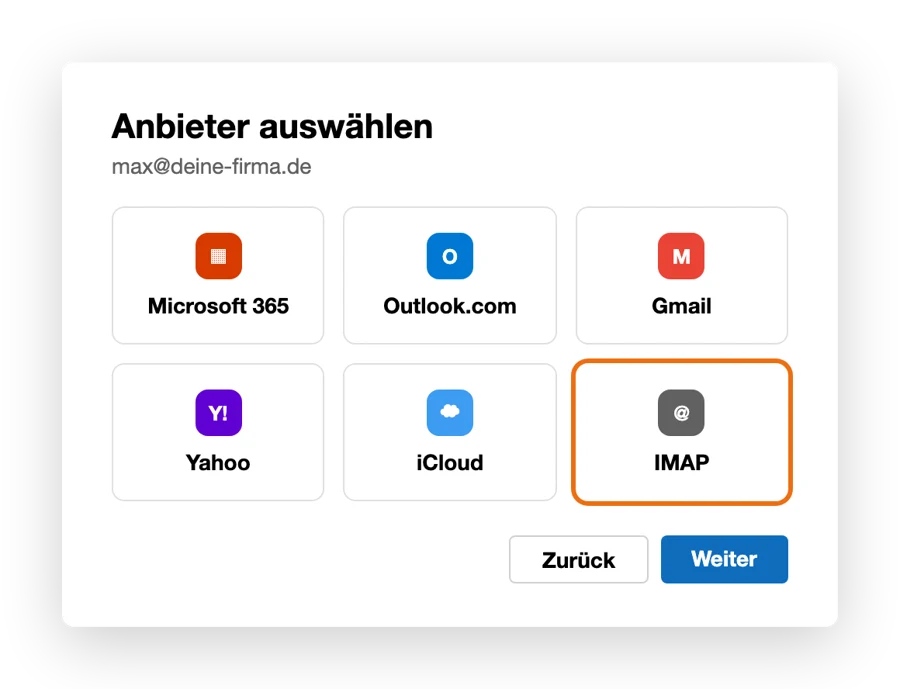
Outlook comes in several variants. On Windows, the new Outlook is now the default; Microsoft has discontinued the older Windows Mail app – use the new Outlook instead. Pick your variant below.
| Setting | Value |
|---|---|
| Account type | IMAP |
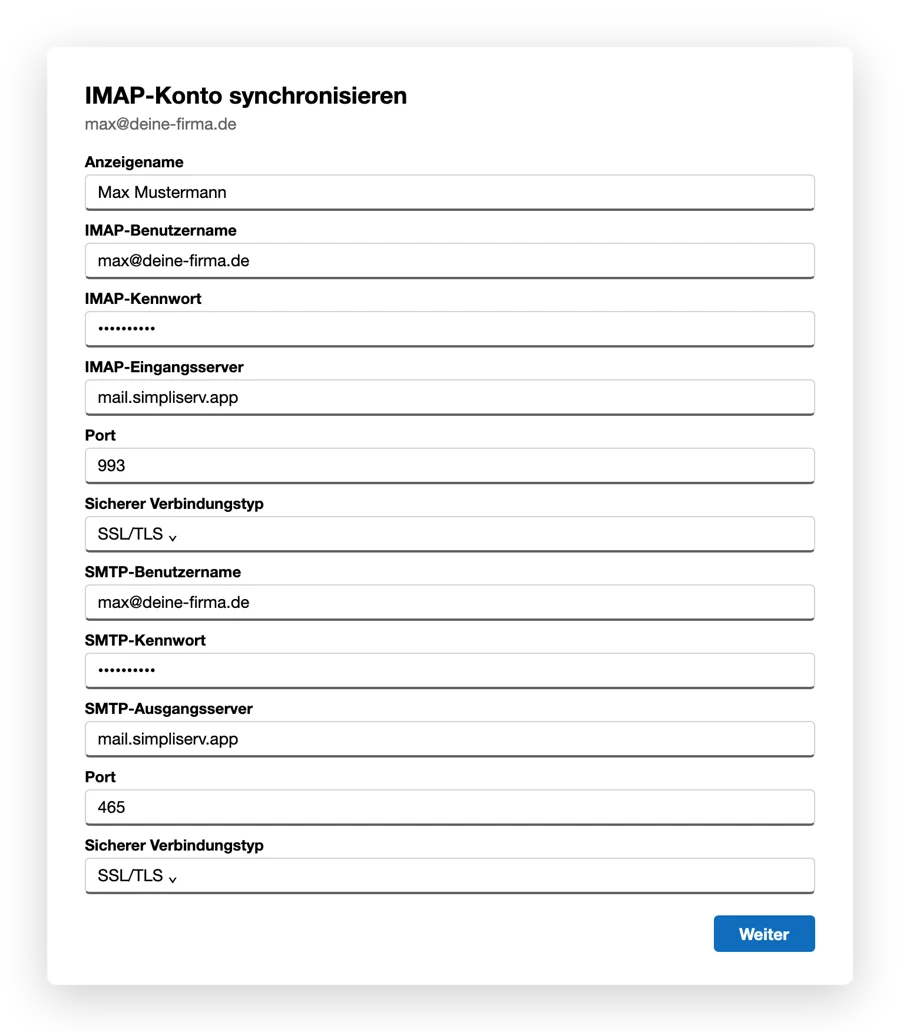
| Incoming server | mail.simpliserv.app, port 993, SSL/TLS |
| Outgoing server | mail.simpliserv.app, port 465, SSL/TLS (alternatively 587, STARTTLS) |
| User name | your full email address |
Add an account
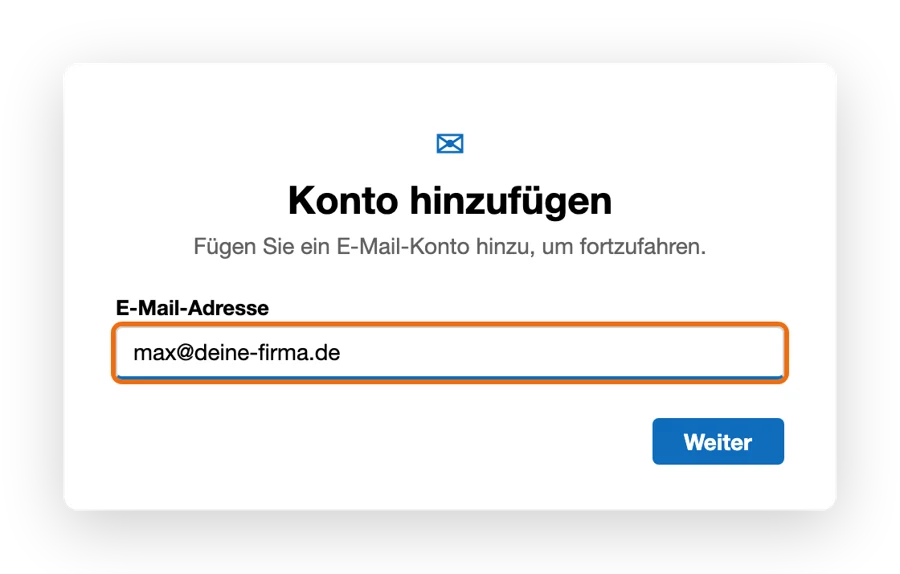
Top right, click the gear (Settings) → Accounts → Email accounts → Add account. If a suggested address is already there, remove it and enter your email address. Continue.
Fill in the advanced settings
Click Show more or Advanced settings and enter the values from the table – user name and password for both IMAP and SMTP, both servers mail.simpliserv.app, secure connection type SSL/TLS. Continue, then Continue again.
The new Outlook syncs IMAP accounts via the Microsoft cloud. Outlook points this out when you add the account. If you don't want that, use classic Outlook, Thunderbird or webmail.
IMAP instead of POP
Outlook also offers POP. The emails then end up only in a file on this one computer. Always choose IMAP.
Signature: new Outlook Settings → Accounts → Signatures; classic Outlook File → Options → Mail → Signatures.
Switching from your old mail server
Set up the new account alongside
Set up the SimpliServ mailbox while the old account is still there, and check that folders and old emails arrive.
Move local emails (POP or PST file)
If the old account was a POP account, the emails are in an Outlook data file (.pst) on the computer. In classic Outlook, drag the folders from the old data file into the inbox or a folder of the new account. Older backups you open via File → Open & Export → Open Outlook Data File and move the emails the same way. For large amounts, go folder by folder.
Remove the old account
New Outlook: Settings → Accounts → Email accounts → next to the old account Manage → Remove. Classic Outlook: File → Account Settings → Account Settings…, select the old account, Remove.
Set the default account
In classic Outlook, in the same window select the new account and click Set as Default so new emails go out with the right address.
Related topics
- Thunderbird — alternative for Windows, Mac and Linux
- Setup problems
- Moving to SimpliServ
How is this guide?